Friday, August 4, 2017

Living with Windows 10 S: Store Apps or Web Apps?

Living with Windows 10 S: Store Apps or Web Apps?

The issue of Store app quality and selection will be a problem for all Windows 10 S users, just as it was for Windows phone users. But Windows 10 S users face a slightly less uncertain future thanks to the availability of high-quality web apps.

Regardless, the future is just as uncertain for Windows 10 S today as it was for Windows phone. As fans and supporters, we can see a future in which this system survives and maybe even thrives. But the reality, today, is painful and even ridiculous.

I write and speak about the need for a compromise when it comes to Windows 10 S and apps. The issue is that Windows 10 S is not a "mode" of Windows 10 Pro, as Microsoft claims. Instead, it is simply a curated version of Windows 10 Pro in which certain features and capabilities have been manually blocked for what are often nebulous and unclear reasons.

In that sense, you might argue that Windows 10 Pro is, in fact, a mode of Windows 10 S, and not the reverse. It's a mode in which the blocked behaviors are unblocked, where those things that might be dangerous, unreliable, or performance-averse are simply allowed.

But semantics aside, the real world implications of Windows 10 S's limitations are very real, and they are something you will feel regularly as you use this system.

Looking at the apps situation specifically, the poor Windows 10 S user faces an obvious challenge: None are new to Windows with this version, and they have a history, in most cases a long history, of habit and expectation. And that includes access to a set of whatever desktop applications that fulfill whatever needs.

And those desktop applications are not available in Windows 10 S. So you will need to seek alternatives.

This situation, again, will be familiar to those who struggled with Windows phone for years, as I did, before throwing in the towel and succumbing to superior mobile platforms like iPhone or Android. And part of that struggle involves, now, as it did then, finding workarounds to the missing apps and services that we could enjoy elsewhere.

In the Windows phone ecosystem, users were forced to download unprofessional apps that emulated the apps they really wanted to use. Apps that brought Google services to a platform that Google would never support, for example.

This situation continues in Windows 10 S though, again, we have slightly better choices now, thanks to two factors: The Store is more of a concern to Microsoft and developers now, because this is "big" Windows, and Windows 10 S can run full-featured web apps that were never really available on phone.

So you're going to have to do some research. This research will involve cataloging the applications you rely on, seeing which are available on Windows 10 S—it will be a short list—and then finding alternatives. Those alternatives might be Store apps that perform tasks similar to those applications you used to use. But they might also include web apps, which, to my mind, are often superior.

But things are never simple with Windows 10 S.

Consider the native app situation.

Yes, the Store's app selection is bigger, overall, for Windows 10 S than it ever was for Windows phone. But quality remains an issue. And this is especially true for those apps that are made by individuals or very small companies, apps that are often meant to overcome the fact that popular, professional apps are just not available in the Store today.

Windows 10 S, like other Windows 10 versions, includes very basic apps for email, calendar, photo viewing and light editing, and so on. And you may be OK with those apps, though I find them to be too simplistic and almost child-like.

Some of the apps I do use are, in fact, available in the Store. For example, Microsoft Office is happening, and I've been using the Store version of Adobe Photoshop 15 since it first became available, on all of my PCs. (Yes, there is a temporary compatibility issue there with Windows 10 S, but Adobe is working on it.) Your mileage will vary, as they say.

I've found a few decent Store apps. For example, Appy Text is a reasonable alternative to MarkdownPad, the Markdown editor I usually use, especially if you upgrade to Premium, which is inexpensive and provides the side-by-side (live preview) view I prefer, plus multiple document support.

Appy Text with side-by-side live preview of a Markdown file

On the normal versions of Windows 10, I make heavy use of web apps, including those for email (Google Inbox), calendar (Google Calendar), and Twitter (Twitter Lite). These web apps are better and more sophisticated than the native app equivalents on Windows 10 S. But, again, things are never simple with Windows 10 S.

I run these web apps on Google Chrome on the normal versions of Windows 10. With Windows 10 S, Chrome is not available. So I'm forced to use Microsoft Edge, which is improving yet again in the Fall Creators Update (which I have already upgraded Window 10 S to), but it still falls short of Chrome in too many ways. This is especially true of web apps. Even with the Fall Creators Update.

The issue is that web apps are not all that sophisticated when used with Edge. And Chrome is better for this for now.

Let me show you what I mean.

Let's say I want to use the web app version of Outlook.com for email, contacts, and calendar management. In Chrome, I can navigate to that site, open the Chrome menu ("…") and choose More Tools > Add to Desktop. Then, I'm prompted to provide a name for the shortcut that it will create. And I can optionally enable the option "Open as a window," which removes all the browser UI and lets this thing look and work more like a native app.

The resulting shortcut, which is saved to the desktop, can likewise be pinned to the taskbar, enhancing its app-like nature. This thing is, for all intents and purposes, just another app I would use every day. In short, it's wonderful.

With Microsoft Edge, things aren't so good. You can't save shortcuts to web apps and websites to the desktop in any version of Windows 10. But if you're on the Fall Creators Update, you can at least pin web apps and websites to the taskbar.

You do this in a way that is similar to Chrome, but is dissimilar to other Edge tab actions: Open Settings and more ("…") and choose "Pin this page to the taskbar." When you do so, a shortcut appears in the taskbar, as expected.

But this shortcut doesn't work like the ones you create with Edge. For starters, it's not tied to the site you're view in the Edge browser. And when you select it, it just opens the underlying site in a new tab in the current Edge browser window. It's not a standalone window. It is not devoid of browser UI, so it doesn't feel like an app at all. And notice that the taskbar icon does't "activate" *(it's not selected) when you "run" the "app." Blah.

This is disappointing. But it also undercuts our ability to overcome Windows 10 S's app problem by using web apps. If these things just worked like apps, Windows 10 S would be a lot more usable.

Understand that this isn't just about "UI." It's about using your well-worn multitasking skills to switch between open windows/apps. It's about not isolating some "apps" inside of browser tabs while others are in their own windows. It's about usability. And this means that you, as the user, needs to change. I think Windows 10 S needs to change. That's the point of technology, isn't it?

Regardless of your needs, you're going to find the Windows 10 S app situation to be the single biggest barrier to using this new system. And it's something I'll continue to struggle with as a keep trying to use it.

Tagged with Windows 10 S


Source: Living with Windows 10 S: Store Apps or Web Apps?

Thursday, August 3, 2017

Windows 10 Mobile Insiders: No, you can’t “Skip Ahead” despite new setting

Windows 10 Mobile Insiders: No, you can't "Skip Ahead" despite new setting | On MSFT

Windows 10 Mobile Insiders: No, you can't "Skip Ahead" despite new setting

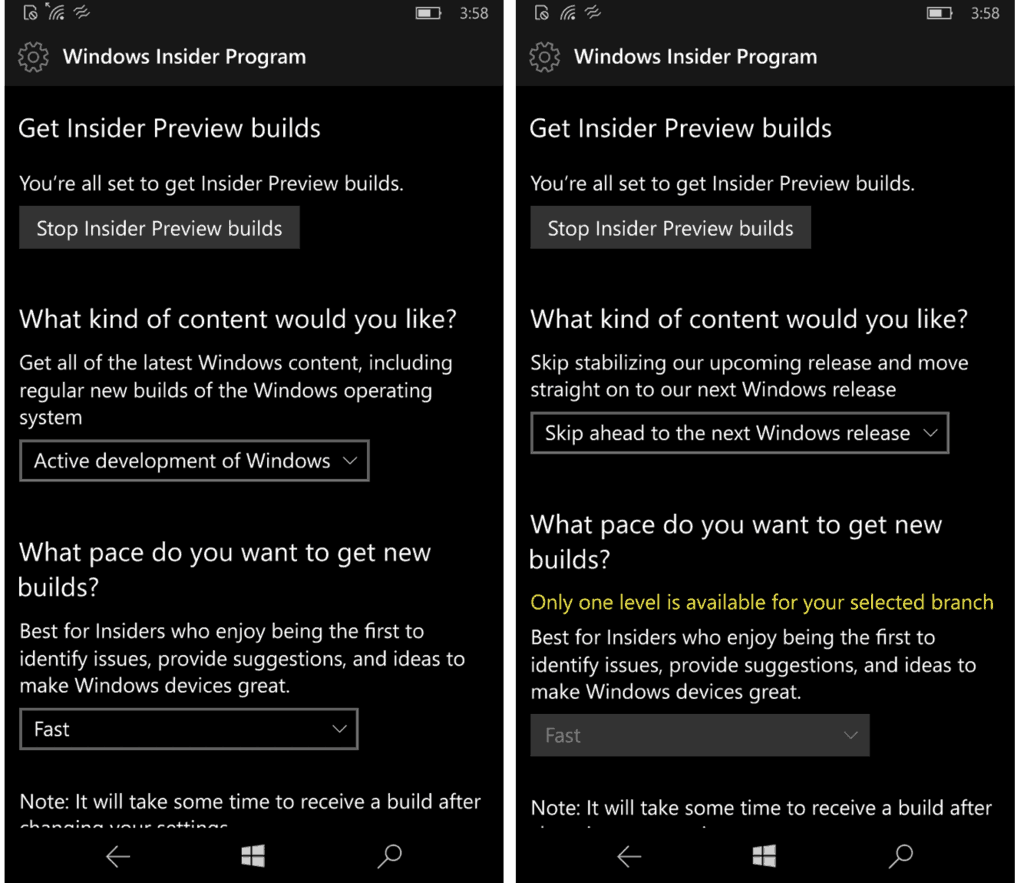
If you already installed the latest Windows 10 Mobile Insider build on your handset, you may have noticed something interesting in the Settings app. If you go check the Settings for the Windows Insider Program, you'll see that the page has been updated to reflect the recent changes on the PC side, with a new option to "Skip Ahead" to the next Windows release.

This is how it looks on a Lumia 550 running the Windows 10 Mobile preview build 15237: you can see two options, "Active development of Windows" or "Skip ahead."

There are two new options on this Lumia 550.

The changes were first discovered yesterday by Windows Central reporter Zac Bowden (interestingly, the screenshot he posted shows three options not two like on the Lumia 550 above). However, Microsoft's Brandon LeBlanc made it clear that these new settings were "a bug" and won't actually do anything.

So yes, Windows 10 Mobile remains stuck on the "feature2" development branch for now at least, and the current situation can still be a bit confusing for Insiders. As of today, Fast Ring Insiders with mobile devices only get regular bug fixes and improvements but no updates for Windows 10 stock apps, which are restricted to PC Insiders who chose to "Skip Ahead" (plus mobile and PC Insiders on the Release Preview Ring). A new option to get both new builds and the latest app updates on the Fast Ring would have been nice, but hey, we can't always get what we want.

Further reading: build 15237, Microsoft, Skip Ahead, Windows 10 Mobile, Windows Insider

Microsoft finds targeting issue with stock Windows 10 app flights for Insiders, issues correction

Microsoft's Groove Music app to receive visualizer, personalization options, more in future update

Microsoft Surface helps one electronic artist take her performances to a new level

LinkedIn wants to match users with mentors with new career coaching service

IDC: Despite new Surface and iPad models, the tablet market is still declining

Is Microsoft Word making your writing worse?

You can now pre-order Dell's Canvas 27, a Surface Studio like addition to your PC

Microsoft releases a fix for Surface Pro 4 Windows Hello issues


Source: Windows 10 Mobile Insiders: No, you can't "Skip Ahead" despite new setting

How to find my phone: Track a lost Android, iPhone or Windows Phone

If you've lost your phone help could be at hand in tracking it down. But note that the solutions offered in this tutorial will require your phone to be switched on in order to give you an accurate idea of its location, and to access options to remotely lock or wipe it. If your battery runs out or your phone is stolen and switched off, you may be out of luck.  

For that reason it's imperative that you back up everything now, just in case you can't get it back. Follow our advice on how to back up Android, how to back up an iPhone and how to back up Windows Phone. 

Below we'll consider the options built into each major mobile operating system to explain how to track your lost or stolen phone. For each of these you will need to be signed into either your Google, Apple or Windows account on the phone before you begin. 

Some third-party options are also available. Prey is a particularly popular option, available not only for mobile devices but also Windows, OS X and Ubuntu laptops. If you have several devices spanning multiple platforms, it's worth considering an option such as this that lets you track them all from a single interface. Read up on how to track lost laptops and smartphones with Prey. 

How to find a lost Android phone 

Find My Device, previously called Device Manager, offers the easiest way to track an Android phone. It's a free app from Google Play, and you can also access the service from any browser by visiting google.com/android/find should your device become lost.

Find My Device offers options to ring, lock or erase your device, should it get out of your hands.

Find Android phone

Find Android phone

Another option, if your phone is switched off, is to check your location history to find its last reported location. You can do this by visiting myaccount.google.com/activitycontrols and tapping on Manage Activity under Location History.  

You'll now see a map of all the places in which your device has reported its location during a time period that you specify. The last known location is where Google last saw it before the battery died, and if your luck's in it may still be there.

Note that location history uses Wi-Fi- and mobile signals rather than GPS, so it won't be as accurate as Android Device Manager. 

How to find a lost iPhone 

To locate a lost Apple device you need Find My iPhone - but before you lose your iPhone you'll need to ensure it's set up on your device. Just tap on Settings, iCloud, then scroll down to and enable Find My iPhone. Also turn on the option below, which sends your last known location just before your battery dies. 

Find my phone: How to locate a lost iPhone

Find my phone: How to locate a lost iPhone 

Find My iPhone requires location services to be active, too, which you'll find under Settings, Privacy, Location Services. 

Having set up Find My iPhone, you have two ways to track a lost device. Firstly, you can use the free Find My iPhone app on another Apple device to track your phone. 

Find my phone: How to locate a lost iPhone

Find my phone: How to locate a lost iPhone 

Alternatively, you can sign into your account on a desktop browser at iCloud.com, then tap Find My iPhone. 

Find my phone: How to locate a lost iPhone

Find my phone: How to locate a lost iPhone

If you have multiple Apple devices select the one that's been misplaced.

Find my phone: How to locate a lost iPhone

Find my phone: How to locate a lost iPhone 

Having selected your phone, Find My iPhone will show you on a map its last known location, and offer options to sound an alarm, lock it or erase its contents. 

Find my phone: How to locate a lost iPhone

Find my phone: How to locate a lost iPhone 

For a more thorough guide to Find My iPhone see our sister site Macworld: How to use Find My iPhone. 

Note: It was recently discovered by CNBC that Apple has filed a patent in order to allow you to remotely switch on a stolen or lost iPhone. Normally, you'll find that you cannot locate your iPhone due to it being switched off, which is often the case when your phone is stolen. 

This new technology would allow your phone to remotely be switched on, if it has enough power to transmit GPS location data before it dies of low-power. On the plus side, if a thief wants to factory reset your iPhone they'll need to switch it on, connect it to a computer and in-turn charge the device - allowing you to locate it. The feature hasn't been yet released by Apple, but the prospects are positive in reducing stolen phones being lost forever.

How to find a lost Windows Phone 

Windows Phone also has its own built-in phone tracker feature. From the home screen swipe to the right to open the apps list, then scroll down to and select Settings. 

Scroll down the Settings pane until you find the Privacy section. Here you'll find options for Location and Find my phone. The first should be turned on by default; open the Find my phone option and enable the option to 'Save my phone's location periodically and before the battery runs out to make it easier to find'. 

Find my phone: How to locate a lost Windows Phone

Find my phone: How to locate a lost Windows Phone 

To later find a lost Windows Phone, all you need do is log into your Windows account at account.microsoft.com/devices. Hit 'Find my phone' under the device you're looking to locate. 

Find my phone: How to locate a lost Windows Phone

Find my phone: How to locate a lost Windows Phone 

You'll now see a map onscreen showing you the last place your Windows Phone reported its location. As with Android Device Manager, also here are options to Ring, Lock and Erase.  

Find my phone: How to locate a lost Windows Phone

Find my phone: How to locate a lost Windows Phone 

Follow Marie Black on Twitter.


Source: How to find my phone: Track a lost Android, iPhone or Windows Phone

Wednesday, August 2, 2017

Microsoft is making a keyboard cover for Apple’s iPad

While the iPad will always play second fiddle to the iPhone, it's been a hot topic over the past 24 hours. First, we learned from Apple's earnings report that iPad sales grew significantly for the first time in ages. Then, hours later, WinFuture spotted a surprising listing on a download page on Microsoft's website that seems to indicate that the company is working on an iPad Touch Cover.

Back in April, Microsoft uploaded a series of PDF documents related to lithium batteries. Many of the items on the list were familiar Microsoft products, such as the HoloLens, the Surface Book, the Xbox One Battery Pack and dozens of Lumia and Nokia smartphones. But one items in particular stands out: "iPad Touch Cover (Model 1719)." So what exactly would a Microsoft iPad cover look like?

Unfortunately, the related PDF file doesn't include any photos, mockups or sketches, but it does include one vital clue about the device: it will contain a small lithium battery, which implies that the case will also feature a wireless keyboard. As WinFuture points out, Logitech's iPad keyboard covers contain virtually the same batteries. The Touch Cover naming, which Microsoft has also used with Surface cases in the past, points to a keyboard on the inside of the case as well.

Whether or not the Microsoft iPad Touch Cover ever sees the light of day remains to be seen, but the two companies have been collaborating more frequently in recent years. The Office suite finally came to the iPad and iPhone back in 2014 — apps which just so happen to work better with keyboards.


Source: Microsoft is making a keyboard cover for Apple's iPad

“Nothing has changed” about supported Windows 10 Mobile devices, despite Insider website info

"Nothing has changed" about supported Windows 10 Mobile devices, despite Insider website info | On MSFT

"Nothing has changed" about supported Windows 10 Mobile devices, despite Insider website info

When Microsoft started to roll our the Windows 10 Mobile Creators Update in April, many owners of old handsets were disappointed to learn that only 11 eligible phones would get it. People with unsupported phones such as the Lumia 930 and Lumia 1520 could still install the feature update by joining the Release Preview Ring, though new Insider Preview builds (builds from the "feature2" development branch, to be clear) are now only supported on these 11 eligible handsets.

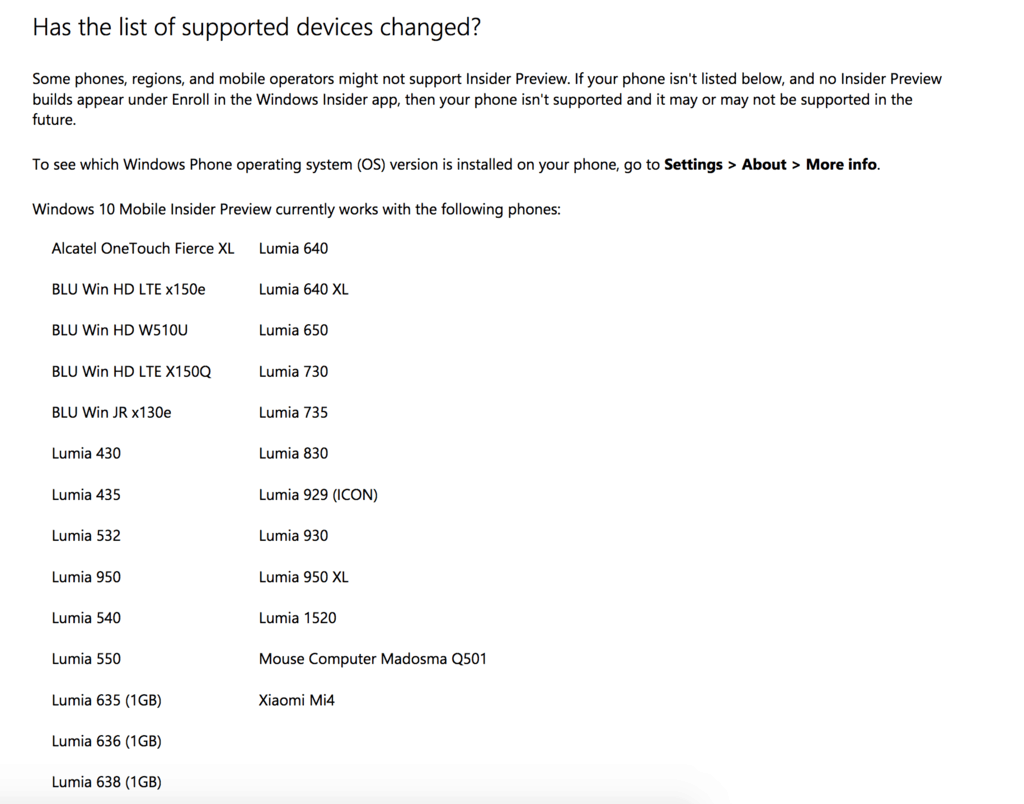
If you're a Windows Phone enthusiast, you probably already know all this. Earlier today tough, developer and Twitter user @gus33000 spotted something interesting on the new Windows Insider website:  The list of supported devices for Windows 10 Mobile Insider Preview builds had quietly changed for the better, and now including 26 handsets such as the low-end Lumia 430, 532, 635 (1GB of RAM), old phones from American manufacturer BLU and even the Xiaomi Mi4 (an Android phone that received a Windows 10 Mobile ROM). You can see a screenshot of the website below:

The new Windows Insider website doesn't have the latest information about the program.

Unfortunately, Dona Sarkar later confirmed that this information is incorrect, adding that the Windows Insider website needs to be updated. Sorry owners of older handsets, nothing to see here:

Microsoft has yet to update the Windows Insider website with the correct information at the time of our writing, so don't be mistaken if you visit it today.

Further reading: Dona Sarkar, Microsoft, Windows 10 Mobile, Windows Insider

Titanfall 2: Ultimate Edition launched on Xbox One today with loads of content

Microsoft Flow gets a big update on Windows 10 Mobile

Microsoft Teams to gain new app admin features

Microsoft Ultimate Word Games updates on Windows 10 with cool improvements

Some Surface Pro 4 users are reporting shaky screens, Windows Hello issues

Windows 10 Cumulative Update 15063.502 is now available on PC and Mobile

Microsoft Store drops 1tb Surface Book model

Bill Gates retirement from Microsoft now includes making meat from plants


Source: "Nothing has changed" about supported Windows 10 Mobile devices, despite Insider website info

Tuesday, August 1, 2017

Apple’s iPhone 8 Could Copy Windows Phone’s Double Tap to Wake Feature

Apple's upcoming iPhone 8 appears to be more of a mix of features inspired from the other mobile platforms on the market, according to the most recent leaks, and now it turns out that Cupertino has also used some Windows phones to improve the feature lineup of its new flagship device.

In addition to typical Android features like fast charging and wireless charging, there's a chance the iPhone 8 could also boast a double tap to wake option that was implemented by Microsoft several years ago on its Lumia devices and then broadly adopted by several other Android models. Lumia 1520, for instance, was one of the first Windows phones to support double tap to wake and it launched 4 years ago in 2013.

Developer Steven-Troughton Smith published on his Twitter account new findings hinting at upcoming iPhone 8 features after analyzing HomePod firmware, and one of them appears to be tap to wake that would allow users to unlock the device, or at least to wake it, by simply tapping or double tapping the display.

No Touch ID embedded into the screen

While seeing Apple borrowing features from the competition isn't necessarily something that you didn't expect, here's another discovery that could have a bigger impact on iPhone 8 adoption. It turns out there's no code for the fingerprint sensor embedded into the display, so the new iPhone could come either with Touch ID on the back or no Touch ID at all.

The addition of facial recognition cameras seem to point that Apple is going for the latter scenario, so fingerprint recognition might no longer have a place on the device.

On the other hand, Apple wants to innovate in the sensor bar at the top of the display, with signs that this feature could be interactive, though it's not yet clear how the whole thing is going to work. ARKit and Photos would also get some major updates, while the function area that was supposed to be placed at the bottom of the screen is more likely to be standard screen space with no features whatsoever.

Without a doubt, there's more to find out about the iPhone 8, but leaks like these provide us with a close look at the device a lot earlier than Apple planned. It remains to be seen how much of this is true, so a certain amount of skepticism is recommended when reading unconfirmed information.


Source: Apple's iPhone 8 Could Copy Windows Phone's Double Tap to Wake Feature

T-Mobile is retiring its Windows Phone app come August 25

T-Mobile is retiring its Windows Phone app come August 25 | On MSFT

T-Mobile is retiring its Windows Phone app come August 25

It appears that T-Mobile too has given up on Windows Phone. According to a report from Windows Central, T-Mobile is set to retire its Windows Phone app come August 25th, pointing users of the app to the mobile website instead.

Word on the retirement is being delivered to users via an in-app message:

Thanks for being an awesome T-Mobile customer! We're always finding new ways to provide you with the best experience possible. Unfortunately, our Windows app will no longer be supported beginning 8/25/2017. Moving forward, you'll be able to manage your account at My.T-Mobile.com.

At first glance, this is a rather odd move given that T-Mobile recently updated the app with a completely new look and interface. The wireless network, though, did also recently abandon its last Windows Phone, the Alcatel Idol 4S, so it would appear that T-Mobile is now focusing more on iOS and Android devices.

Further reading: Microsoft, T-Mobile, Windows Phone

Xbox skipping major New Zealand expo, planning separate Xbox One X event instead

Digital pre-orders open for Resident Evil Revelations on Xbox One

Titanfall 2 now available in EA Access Vault on Xbox One

Xbox 360 game Rock Band Blitz to be removed from store this month

Xbox One launch title Powerstar Golf updated to fix major bugs

Third-party Windows Phone Tinder app 6tin updates to fix login problems

New video games added to Xbox Game Pass for August

Xbox One Preview Beta build 1706.170728-1839 rolling out, here's what's new


Source: T-Mobile is retiring its Windows Phone app come August 25